
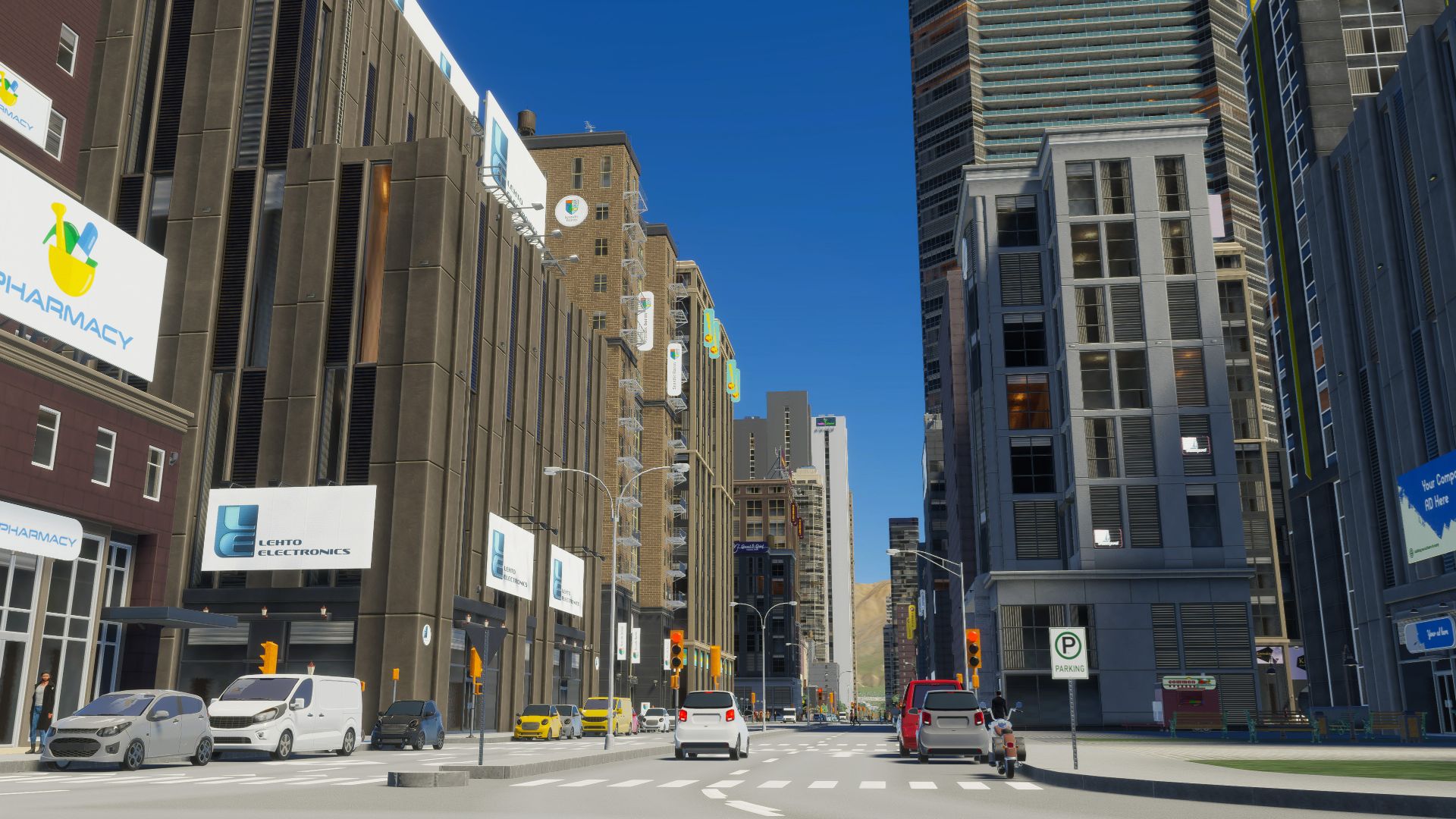
Are you looking for the best Cities Skylines 2 settings to increase performance and FPS? Let’s examine your best options.
Overall, there are various settings you can tweak, and it’s important to increase FPS as much as possible since the game gets extremely demanding in terms of performance as you progress and increase the size of your city.
Without further delay, let’s go through everything you need to know.
Cities Skylines 2 Settings Guide – Best Performance and FPS Settings
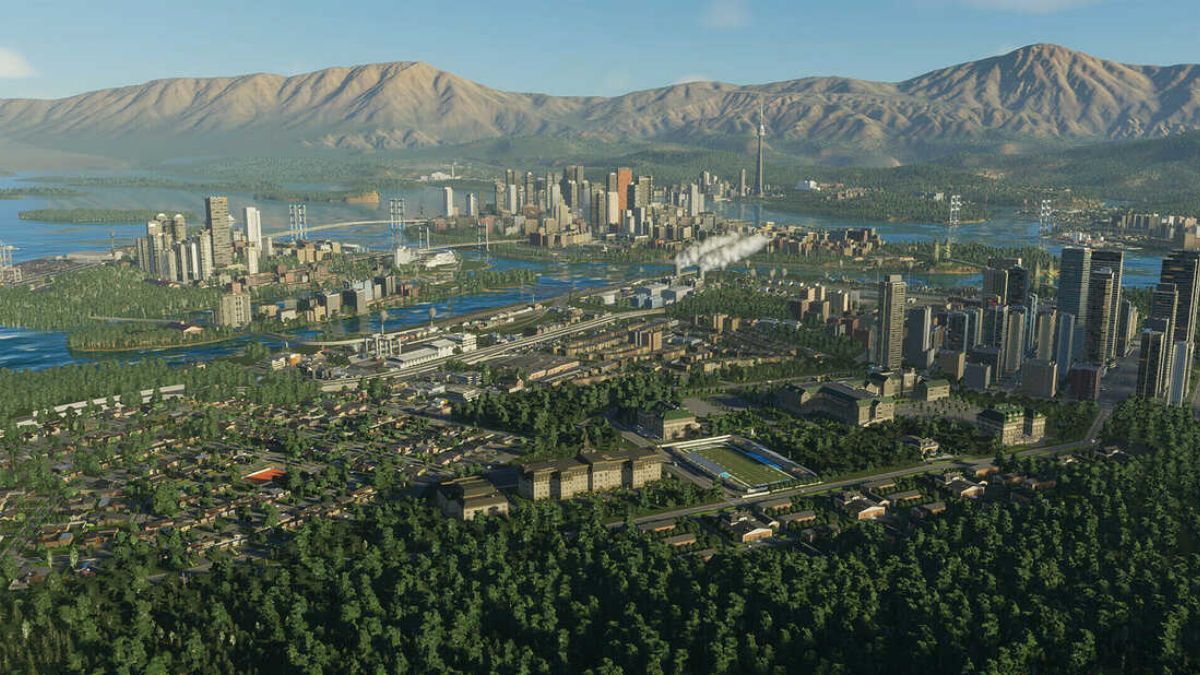
Cities Skylines 2 includes a wide variety of setting options that you can tweak. Keep in mind that as you progress through the game and your city becomes larger, your FPS will gradually decrease.
Thus, even if you’re getting 90 FPS in the early game, I would highly recommend lowering your settings since you’ll drop to below 60 sooner or later.
But sropping everything to “Low” makes the game look hideous, and it does not actually solve the root cause of the lag. You need to target specific settings based on your hardware.
Also read: Unicorn Overlord: How to Romance Clive
Understanding the Bottleneck: CPU vs. GPU
Before we change any sliders, we need to talk about why the game slows down. As your city grows, the simulation becomes incredibly demanding.
Every citizen, vehicle, and economic calculation takes a toll on your system. This causes a CPU bottleneck.
Lowering your graphics settings will not fix a CPU bottleneck because graphics are handled by your GPU.
If your simulation speed is crawling but panning the camera feels smooth, your CPU is maxed out.
The Absolute FPS Killers
Some graphical settings in this engine are notoriously heavy. I always disable these first before touching anything else. If you are struggling with frame rates, target these three settings right away.
- Volumetrics Quality Setting: Disabled. This controls volumetric lighting and clouds. It looks nice, but it eats up your GPU resources fast.
- Depth of Field Quality: Disabled. This blurs the background when you zoom in. Turning it off gives a massive performance boost and makes everything look much sharper.
- Global Illumination Quality: Disabled. If you have a high end rig, you can keep it on Low since it looks nice. For everyone else, turning it off is the fastest way to gain frames.
Also read: Lightyear Frontier – How to restore Pine Heights
Upscaling: How to Properly Use DLSS and FSR
Post launch patches finally brought Nvidia DLSS and AMD FSR support to the game. If you are not using these, you are leaving massive performance gains on the table.
Upscaling renders the game at a lower resolution and uses AI to scale it back up to your native display.
I play with DLSS set to “Quality” or “Balanced” and it completely transforms the experience.
Make sure you enable the appropriate upscaling method for your graphics card instead of using the older Dynamic Resolution Scale Quality setting, which I recommend keeping disabled.
The Texture Quality Myth
You might be tempted to set your textures to Low, but hold on. In modern PC gaming, texture resolution is tied almost entirely to your graphics card VRAM, not raw computing power.
If your GPU has 8GB or more of VRAM, turning Texture Quality Settings to Low will make the game look like mud while providing absolutely zero FPS gain.
I keep mine on High because my card can handle the memory load. Switch to Medium or Low only if your VRAM is maxed out and causing stuttering.
Also read: Disney Dreamlight Valley: How to Get Fabric and Cotton
Recommended Settings for Maximum FPS
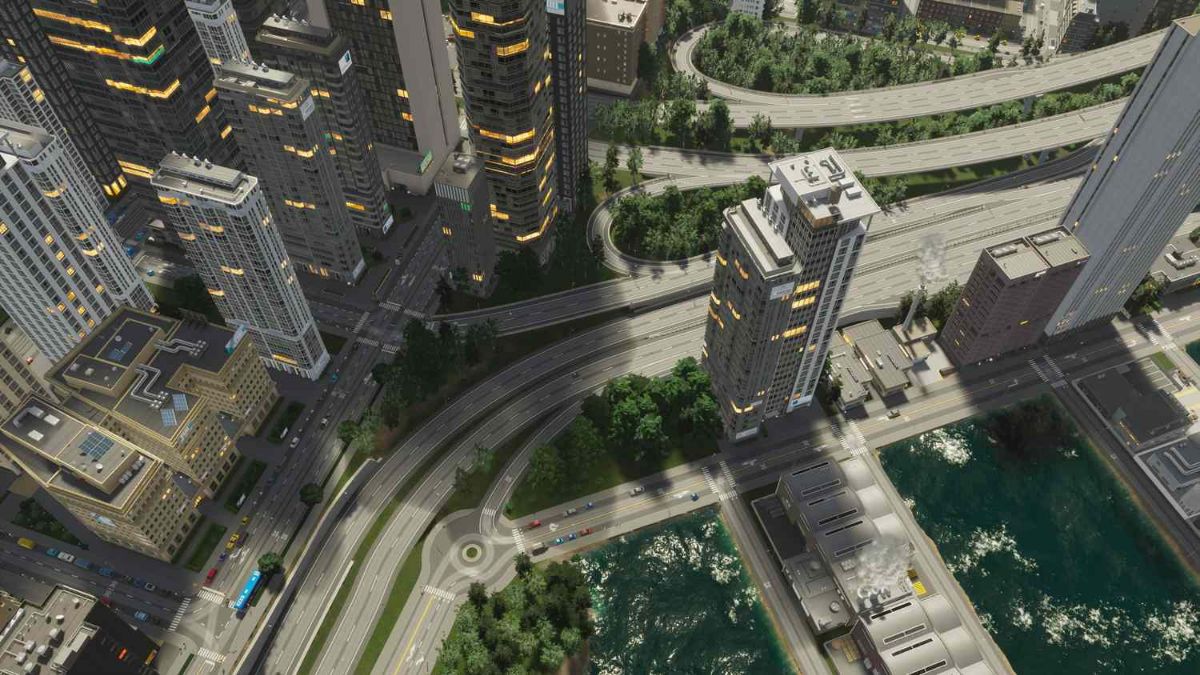
To help you improve performance across the board, here are the baseline settings I recommend – go up from here if your rig can handle it. You can adjust these based on whether you have a low-end or high-end PC.
- Screen Resolution: 1920×1080. I highly recommend against 2k and 4k resolutions on older hardware since the game can get extremely demanding as you progress and upgrade your city.
- Screen Mode: Fullscreen
- VSync: Off
- Anti-aliasing Quality: Low SMAA
- Clouds Quality Settings: Low
- Fog Quality Settings: Disabled
- Ambient Occlusion Quality: Low
- Reflections Quality: Low
- Motion Blur Quality: Disabled
- Shadow Quality: Low
- Terrain Quality Settings: Low
- Water Quality Settings: Low
- Level of Detail: Very Low. Switch to Low or Medium if Very Low looks too bad.
- Animation Quality: Medium
The most important thing to remember is that you can never have too many FPS in Cities Skylines 2.
However, it is also important to not make the game look hideous. Thus, lower the settings as much as you can without completely slaughtering the visuals.
Also read: Disney Dreamlight Valley – How to Farm Sand and Clay
The most important thing to remember is that you can never have too many FPS in Cities Skylines 2. However, it’s also important to not make the game look hideous.
Thus, lower the settings as much as you can without completely slaughtering the visuals.
Wrapping up
In conclusion, the best settings in Cities Skylines 2 involve setting everything to low/disabled in order to gain as many FPS as possible.
Just remember that since it is Cities Skylines 2, FPS will drop as you progress in the game, so you may need to keep tweaking settings every few hours while playing.
What’s your average FPS while playing the game, and what’s the size/value of your city? Have you found any other settings that increase performance? Feel free to share them in the comments below.